
Help & guidelines
Everything you need to know, grouped by role. Switch tabs below for the guide that matches what you're doing.
Watch how AMS works, end to end
From creating an account to a published, DOI-ready article - every role in one guided walkthrough. Jump to the part you need:
- Create an account 0:13
- Register a journal or conference 0:35
- Submit a manuscript 1:08
- Editor / chair console & reviewer assignment 1:49
- Peer review 2:24
- Editorial decision 2:55
- More editor & chair tools 3:21
- Publication charge (APC) - Technology Fist venues 4:41
- Digital Library & published article 5:08
Captions are shown on screen; no audio is required.
The journey of a paper (conference/journal)
You can track exactly where your paper is at any time from your dashboard - no need to email the chair to ask.
Submitting a paper
- Use the registration link your conference/journal shared with you to create your account (or log in if you already have one). You can also create a general account first from Create account and pick a venue afterward, from your dashboard.
- From your dashboard, click Submit a paper, then Browse & submit.
- Fill in the title, abstract, topic, and full author list, then upload your manuscript (PDF, DOC, or DOCX - up to 30 MB).
- You'll receive a paper ID (e.g. PAP-001, numbered independently within that conference/journal) - use this to refer to your submission in any correspondence.
- You'll get a confirmation email immediately, and the chair is notified too.
Signing in, and "Keep me signed in"
Sign in with your email and password, or with Sign in with ORCID when the platform offers it. Show beside the password lets you check what you typed. If you have switched on two-step verification (Account settings), the code from your authenticator app is asked next.
Tick Keep me signed in on this device on your own computer or phone and you stay signed in there for up to 30 days, or until you sign out. Leave it unticked on a shared or public computer. Log out ends it on that device; changing your password, resetting it, or removing the device from the list on your Account page ends it everywhere else.
After you submit
Reviewer comments and the decision stay hidden until the chair explicitly releases them - so if your dashboard shows "not released yet," that's completely normal; nothing is wrong, the chair just hasn't finished the review round.
Messages & support
Need to reach the team that runs your venue? Open Messages / support from the venue's dashboard (or the Support link at the top of any page). You'll be asked which paper your message is about - the reference travels with it so the team can open your paper instantly. No paper on file yet (say, your upload is failing)? You can still send; your message is simply marked "pre-submission".
Each paper keeps one continuous conversation: every message about it - yours or the team's - joins the same chain, in order, so nothing is ever scattered across separate threads. The chair or editor may also message you first about a paper; you'll get an email, and you read and reply in the same place. A conversation marked resolved isn't locked: writing again simply reopens it.
Questions about your account or billing rather than a venue go to platform support from the same page. Every reply, from anyone, is also emailed to you.
If a revision is requested
You'll see a Submit revised paper button on your submission page once the decision is released. Upload your revised manuscript along with a point-by-point response describing how you addressed each reviewer comment - it goes back under review automatically. For a major revision the original reviewers are asked to re-review your changes (they see exactly what you changed alongside your response); a minor revision goes straight back to the chair/editor for the new decision.
If your paper is accepted: camera-ready
Once accepted, you'll see a Submit camera-ready files button - this is a separate, final step from your original submission (your original file stays exactly as you first uploaded it; the camera-ready version is tracked on its own). If the venue uses IEEE eCopyright, you'll also see a link to complete that directly on IEEE's own site.
Carrying your reviews to another venue
If a venue offers it, you can create a review passport for a paper that has been decided - a code you give to another venue on this platform so its editor can read the reviews you already received. Each reviewer decides for themselves whether their report travels and whether their name goes with it, so a passport may carry some reviews and not others; their confidential comments to the chair are never included. You can revoke a passport at any time.
Certificates and acceptance letters you can prove
Where a venue has switched them on, your certificates - presentation (an accepted paper), attendance (a confirmed registration you checked in with) and publication (a published paper with its DOI) - are issued against the real record as numbered PDFs in the venue's own design, emailed to you and offered on your paper page and under My certificates. A venue's acceptance / invitation letter for your accepted paper works the same way: numbered, in the venue's letterhead, addressed to all authors or to you by name, downloadable from the paper page's Decision card.
Each document carries a code that anyone (an employer, a funder, your institution, an embassy) can check on the public Verify page, so it stands up to scrutiny. A certificate is a record of participation, not an academic qualification.
Your presentation slot - and attending online
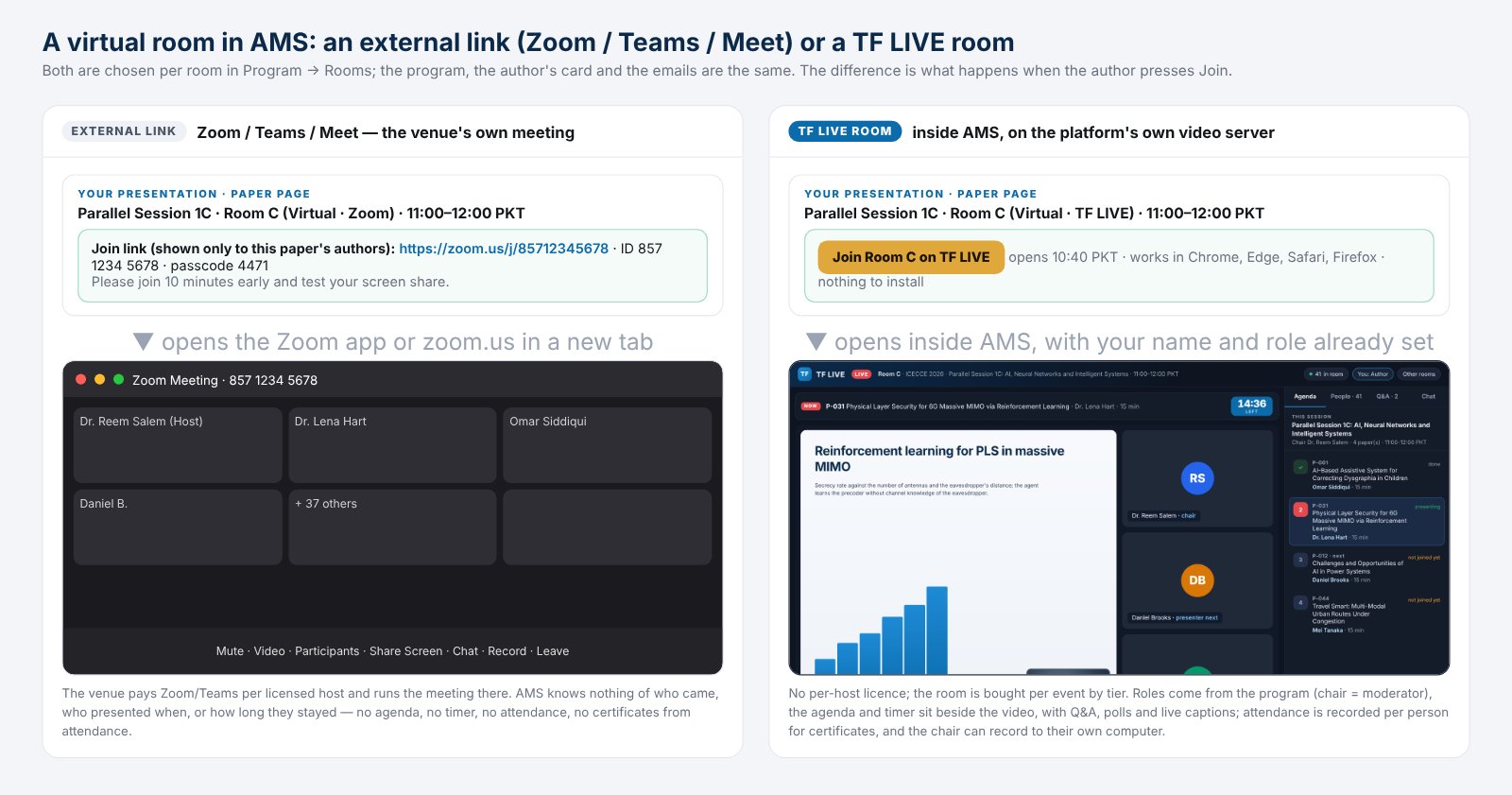
As soon as your paper is accepted, your paper page asks how you will attend - in person or online; it is your choice and the chair sees it when building the program (the chairs can also record it for you - you get an email and can change it back). Once the program is published, Your presentation on the paper page shows the session, day and time (in the venue's zone and in your own), the room and whether it is physical or virtual, the presenter (you can change it to any listed author), the minutes for the talk and the session chair, with Add to calendar and Request a different slot. You are emailed your slot when the program is published, and again only if it changes.
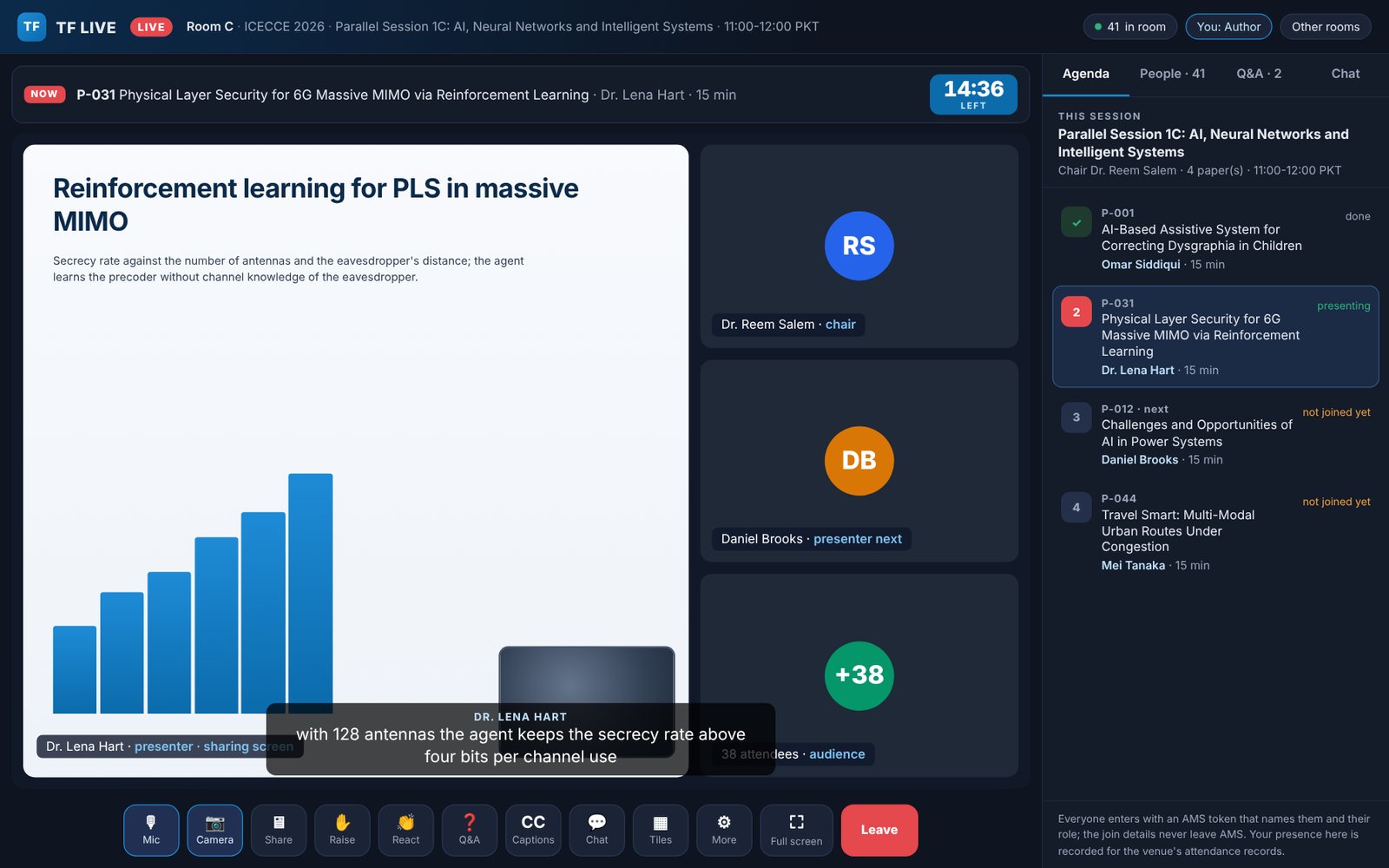
If the room is a TF LIVE room, the same card carries Join: the session opens inside AMS in your browser - nothing to install, no account anywhere else - from the time the room opens before its first session. Your dashboard lists the rooms you may enter today under Attend online. Your attendance is recorded automatically while you are in the room (it is what an attendance certificate is issued against), and the session chair may record the session to their own computer. As an author of a scheduled paper you may also sit in the venue's other online sessions as audience (unless the venue limits authors to their own session); if the venue admits authors only once their fee is settled, the card says so until it is paid, waived or the chair admits your paper by hand. Join from any device you like - but one at a time: joining from a second device closes the first.
In the room the Q&A tab takes your question for the presenter (tick privately to the chair to reach the chair alone), the chair's polls appear there too, React sends a clap or a thumbs-up over the video, and Captions shows what the presenter's browser hears (automatic, English, may contain errors; switch CC on in Chrome or Edge while your paper is on and your own words are captioned, nothing while your microphone is muted). As the presenter, upload your slides (a PDF) on your paper page beforehand: in the room the chair - or you, while your paper is on - can show them beside the video even if your screen share fails, and the 2 minutes left and time is up warnings sound in your browser. If your connection drops, the page rejoins by itself; the phone's back button (or the browser's) asks Leave the session? before it takes you out, so a stray touch keeps you in; More opens quick settings - microphone, speaker, camera, noise suppression, background, video quality - and All settings (sounds, captions, shortcuts), all remembered on this device; when you leave, two taps rate the session for the organisers. A session's recording, where the venue provides one, is linked from your paper page and from Attend online.
Your published paper gets a real, permanent DOI
If your venue uses the separate Publishing platform, your accepted paper doesn't just appear on this site - it gets a genuine, Crossref DOI-ready record and its own permanent article page in the Technology Fist Digital Library, with its license (typically Creative Commons), article history dates, citation counts, and six citation formats (IEEE, APA, Chicago, MLA, Harvard, Vancouver) plus BibTeX and RIS downloads. Before publication you'll receive the final proof by email - open your personal link, check the record, and approve it (or request corrections); your paper is published once you approve.
You'll see the DOI on your paper's status page as soon as it's assigned, with a link straight to the public page. Your Author Success Centre (from your dashboard) shows this alongside every other paper you've ever submitted, anywhere on the platform.
Article processing charges (APC)
If a fee applies, your dashboard and the acceptance email tell you the moment it becomes payable - you'll see a highlighted Payment due card on your paper page. Choose the country of the payer, the rate that applies to you (e.g. student, member, standard) and the payment method (bank transfer with receipt upload, or online payment where available - you're taken to the bank's secure page). You're emailed as soon as your payment is confirmed, waived, or found not received, with a receipt once paid, and gentle reminders if a payment sits pending. While one payment is pending you can't accidentally start a duplicate.
Need an invoice first? For a bank transfer to Technology Fist's account, Generate invoice for bank transfer on the charge page issues the numbered invoice before you pay - the same number becomes your receipt when the transfer is confirmed. If your institution needs the chair's own pro-forma invoice (with your institution's bill-to details or a purchase-order number), ask the chairs: they issue it from your paper page and you find it under Billing & receipts. Every invoice and receipt downloads as a one-page PDF and carries a verification code and QR code; whoever reimburses you can check the number, amount and its current status (awaiting payment, paid, waived, void) on the public Verify page without seeing anything private.
A card payment you start but never complete stays open for at least 30 days and is then closed automatically. Nothing is charged when that happens, you are emailed to say so, and you can start a new payment for the same paper at any time. Bank transfers and Bank Alfalah payments are never closed automatically - a person confirms those, so they wait for as long as they need to.
What the fee covers, and when it is charged. The fee is charged only once processing is complete - after editorial acceptance, when your paper has been taken through AMS to a publication-ready state (submission processing, software-based reviewer assignment, the automated similarity and format checks with their results on your dashboard, camera-ready collection with its automated format check and, for IEEE venues, redirection to the IEEE electronic Copyright Transfer through AMS). You can follow every step on your paper page before any payment is due. Your payment is confirmed automatically and your receipt is issued at once - your paper, already processed to a publication-ready state, goes forward to publication, and you can follow every step on your paper page. Where the venue publishes with Technology Fist, publication follows your approval of the proof and the venue's publication step; where proceedings go to an external publisher, the finished paper is forwarded in the required form. Paying by bank transfer? A person on the team confirms the transfer first, so your paper goes forward once we have confirmed it - not at the moment you send it.
Publishing a preprint instead
Preprints skip formal peer review, but a moderator still reviews every submission before it goes public. Note the order: your content is approved first - you're never asked to pay before knowing whether it's accepted. If a posting fee applies to this collection, a payment tab appears on your submission page only after approval, and your preprint goes live the moment that payment is confirmed. From your dashboard, click Publish a preprint, choose a collection, and submit like a normal paper. You'll be emailed at each step.
The posting fee covers two things: the publication itself (DOI, permanent hosting, version history, citation and metadata exports) and community review - signed public reviews written by other platform members. You control that from your own submission page: reviews are held for your approval by default, or you can publish them immediately, or turn them off. You can reply publicly to any review, and withdrawing one leaves a dated notice in its place rather than erasing it.
Getting started
- Customize your Topics and Decision categories to match your event (Settings).
- Invite reviewers from the Reviewers page, or add Co-chairs/Associate Editors if others are helping you run it.
- Share your registration link (shown on your dashboard) with prospective authors.
Two separate places to look for papers
Every paper ever submitted, permanently, with its original file - this never changes, even after a paper reaches camera-ready.
A separate, focused list of just the accepted papers, showing clearly whether each author has submitted their camera-ready version yet.
Running review
Open a paper from All submissions to assign reviewers and set a decision. Decisions stay hidden from authors - shown as Not released right in your own submissions list - until you explicitly release them.
To move an accepted paper into the camera-ready stage, select it in All submissions and use the Move to Camera-Ready bulk action - it will then also appear in your separate Camera-ready submissions page, marked "Camera ready missing" until the author submits it.
Messages: member queries, and messaging authors
Your Messages tab collects every query your members send to the venue, with an awaiting-reply count on your dashboard. Reply from the thread - the member is emailed automatically. Threads can be closed when resolved and reopened any time.
You can also start the conversation: message any paper's author from the "Message an author about a paper" panel on the Messages tab, or straight from the paper's own page. Each paper keeps one continuous conversation - whatever either side sends about that paper joins the same chain, and a resolved chain reopens when someone writes. The message goes to the paper's submitting author, with an email.
Two controls worth knowing: your venue's Settings page has "Allow members to send messages to this venue's team" - switch it off and members can no longer start new messages to you (existing conversations stay readable and replyable, and you can still message authors). And for anything platform-level - renewals, plans, payments - use the Message platform support panel on the same Messages tab; your venue is attached automatically.
Bulk downloading papers
Bulk paper download lets you filter by status and/or decision, choose submission files, camera-ready files, or both, and download everything matching as a single ZIP - useful for archiving an entire accepted batch at once.
Article processing charges (APC)
Define your Article Processing Charge (APC) types (e.g. Student, Member, Standard) under APC types, and enable a payment method under Settings. Track and confirm incoming payments from the Payments page - Mark paid and Waive issue the numbered receipt (or close the invoice) at once.
When an author's institution needs an invoice before it releases money, the paper page's Payments tab has a Pro-forma invoice box: the charge type fills the amount and currency, you add the bill-to details and a purchase-order note, and the invoice goes to the author (with an email, if you tick it). It is stamped PAID when any payment on the paper is confirmed and closed void if you waive the fee. Every invoice and receipt carries a verification code and QR code, so a finance office can check it on the public Verify page.
IEEE eCopyright
Built in for every conference. If this is an IEEE conference, just enter your Conference Title and 5-digit Record Number (from your IEEE Letter of Acquisition) under Settings. Each author then gets a "Complete IEEE eCopyright Form" button at camera-ready that opens IEEE's own eCopyright site with their paper title, authors and this conference already filled in.
Extra modules you can ask for
Seven optional modules are switched on per venue by the platform team. Acceptance letters and designed certificates on every plan; the Federation Reviewer Network, portable peer review (the review passport), indexing & compliance readiness and the live event layer on AMS Core Plus and AMS Core Plus & Publishing; TF LIVE rooms on AMS Core Plus and AMS Core Plus & Publishing, bought per event by tier. Every module is switched on per venue on request. Open Extra modules in your console to see what is already on and to request the rest - you will get an email once your request is answered.
- Acceptance letters (on every plan) - your venue's own acceptance / invitation letters from a template set once: one click for every accepted paper or per paper, addressed to all authors, to each author or to the corresponding author, numbered PDFs, emailed, verifiable by code.
- Certificates (on every plan) - presentation, attendance and publication certificates in your own design, issued for everyone eligible in one click, numbered, stored as PDFs, emailed, with Re-issue, Email again, Revoke and a ZIP of all. Also switched on by the two modules that need it.
- Federation Reviewer Network (on AMS Core Plus and AMS Core Plus & Publishing) - search members across the platform who have opted in to reviewing, by subject, with their service record, current workload and conflict-of-interest checks, then invite them. They accept or decline in their own account.
- Review passport (on AMS Core Plus and AMS Core Plus & Publishing) - receive the peer review an author already had at another venue on the platform. You must acknowledge that it is background information before it is shown, and the decision remains entirely yours.
- Indexing & compliance readiness (on AMS Core Plus and AMS Core Plus & Publishing) - a scored report against DOAJ, Scopus, Web of Science and COPE expectations, built from your own venue record, with an evidence pack you can attach to an application. It measures readiness; the indexing decision always rests with each service.
- Live event layer (on AMS Core Plus and AMS Core Plus & Publishing) - ticket types, attendee registration, check-in, and attendance / presentation certificates that anyone can verify from a public link.
- TF LIVE rooms (on AMS Core Plus and AMS Core Plus & Publishing, bought per event by tier) - your virtual sessions on the platform's own video server, inside AMS; see the card below.
Program: rooms, presenters, the booklet
The program builder's Rooms card holds each room as physical (a hall and its location) or virtual (a Zoom / Teams room with its join link, ID, passcode and a note to presenters). A session picks a room, so every paper in it is physical or virtual automatically; join details reach only the authors scheduled in that room, signed in, once the program is published - never the public page, the booklet or the CSV. Each scheduled paper names its presenter (the corresponding author by default; you or the responsible author can change it) and its minutes, and the author's own in person / online declaration is shown beside it - a physical paper placed in a virtual room is flagged in the schedule check.
Above the rooms, How papers will be presented counts the accepted papers by their author's answer - in person, online, not stated. Email the authors who have not said asks each of them in one email (with an optional answer-by date; once a day at most), and the Assign list fills in as they answer. You can also record the answer yourself - for any accepted paper in that card, or with change under the Attends column of a scheduled paper - which clears the "attendance check" warning; the responsible author is told by email and can still change it on the paper page. A paper can always be placed in a room of the other kind; the warning only reminds you.
Name the venue's time zone once and every time is shown in your zone and in the reader's own. Publish with "email presenters their slots" ticked emails every scheduled paper its slot (re-publishing after a change emails only the papers whose slot moved). The program booklet - cover, per-day overview grid, session tables with the presenter marked - downloads as a PDF and as a Word document for the last-minute edits; export and import carry a Room column.
TF LIVE: your virtual sessions inside AMS
Ask for the module under Extra modules, then buy a tier there - rooms in parallel x event days (the Modules page lists the tiers on sale; venues Technology Fist operates pay nothing). In the Rooms card set a virtual room's provider to TF LIVE room, with its lobby and how many minutes before the first session it opens. The builder keeps your program within the tier: a change that would need more rooms in parallel or more days than you bought is refused with the reason, and a room, a session's chair account (a new select beside the chair's name) and the program itself decide who may enter - the papers' authors, the session chair, your venue's chairs any time, and confirmed attendees of the event layer.
In the room the session chair has the agenda with the presenter and minutes of each paper and one row of controls: Next paper with a countdown, Skip to end, No-show, Spotlight presenter, Mute all, Restart timer, Lobby, Record and End session, with Spotlight hall camera and the recording note under More; presenters share their screen; attendance is recorded per person for the certificates. Record saves one MP4 to the chair's own computer - nothing is recorded or kept on the server. Your own Zoom / Teams / Meet links keep working for rooms you leave as external links, where the platform's policy allows them.
One room runs the whole day: it shows the session that is on, and when a session ends it shows the next one as Up next with a countdown - the agenda, timer, Q&A and polls change by themselves and nobody leaves the call. End session asks whether you stay in the room (for the next session) or leave. A session that runs over keeps the room while a paper is still on, for at most 15 minutes; the next session's chair (or a venue chair) can press Start the next session now. Session chairs may enter any time on the day of their session. The lobby is off unless a chair switches it on in the room; chairs never wait in it, and it goes back off when the next session starts.
Who sits in the rooms is yours to set under Audience rules on the Program page: every author of a scheduled paper (presenter and co-authors) may attend every session of the event as audience and presents only in their own slot; an author whose fee is still unpaid is admitted by default - you see a red * after their name in the room and in the attendance list, nobody else does - or, if you prefer, admitted only once the fee is paid or waived, with an admit before payment tick on a paper's row for the late payers you know about. People outside the program - a keynote listener, a sponsor, a colleague - get in through Invite a guest on a session card: a personal link that works once, a short account if they have none, and a seat in every session of the event as an invited guest. One account holds one seat at a time: signing in to AMS on several devices is fine, but joining a room from a second device disconnects the first (or is refused, if you choose), every change of device is logged, and the attendance list (with its CSV) shows the minutes, the fee mark and the device changes.
Running the session. In the room the console gains Skip to end (the paper that is on, or next, goes to the end of the session - you come back to it), No-show (the presenter is absent: the paper is recorded as not presented and kept off the presentation certificates unless you insist) and Show slides (the PDF the presenter uploaded on their paper page, beside the video, pages turned by you or the presenter). The Q&A tab queues the questions - mark each answering, answered or set it aside; a question ticked private reaches you alone - and holds your polls (a question, two to eight options, live results). The People tab shows who is speaking and whose hand is up; hover a person to pin or remove them. Captions shows everyone who switches CC on what the presenter's browser hears; your own voice is captioned between papers, or while a paper is on after you press Caption my voice, and never while your microphone is muted. At 2 minutes left and at time up the room gets a banner and the presenter and you a chime. End session writes the record - each paper's actual times and outcome, the attendance peak, the questions, the polls, the ratings participants give on leaving - and emails it to you; the attendance page keeps it with three more CSVs. On a session's card you set a co-chair account (the console too), and afterwards the recording link - the recording stays on the chair's computer; put it on YouTube, Vimeo, Drive or your media server and paste the link; registered attendees (or anyone, if you tick public) see "Watch the recording". On a room you set a hall camera account for a hybrid session (its Projector button puts the remote presenters full-screen on the hall's projector) and view only for a plenary (the audience receives only, Q&A and polls still work). Under Session options: the minutes an attendee needs in rooms before the attendance page checks them in for the certificate, and how many minutes before a session presenters and chairs get their reminder email.
Acceptance letters & certificates
With the modules on, Acceptance letters and Certificates appear in your console. Set the template once - letterhead, logos, number pattern, wording with placeholders, signatories - and preview it with a sample paper. Generate / Issue for all issues a document for everyone eligible in one click, addressed as you choose: all authors on one, one per author, or the corresponding author only; a second run never duplicates. Each document is numbered, stored as a PDF, emailed on issue (if you tick it) and verifiable by its code on the public Verify page; Re-issue renders it again from today's template under the same number, Email again resends the notice, Revoke withdraws a certificate, and Download all (ZIP) gives you the set.
Optional public website & plan upgrades
If your conference has a public website enabled, a Customize your website link appears on your dashboard - including your Scope, Review Policy, and Editorial Policy pages (Editorial Board, for journals), all pre-filled with sensible starter text you're free to edit. If it doesn't yet, Upgrade your plan lets you request one directly - pay the difference, and it activates once confirmed.
Website design & ready-made forms
Under Customize your website you'll find template-style design options - four color themes (or your own color), serif or modern typography, corner styles, three hero header styles, a tagline, and a footer line - all applied to your public site only, live the moment you save. And every new venue starts with professional, fully editable submission, review, and camera-ready forms already in place; if you ever empty one, a single click restores the suggested set.
Publishing, MOUs & real DOIs
The path to publication runs in clear, recorded steps: complete the Publishing application (from your dashboard - it can also be co-submitted with your original hosting request), listing your review process AND your institutions - main organizer, sponsors, collaborators - with each liable institution's financial-responsibility share (shares must total 100%, institutional entities only). A specialist reviews it in rounds; you address observations with a written response each round, and the Super Chair grants the final decision. On approval, an MOU is emailed automatically to each liable institution's official contact for one-click electronic approval - publishing switches on once every MOU is approved, and the executed MOU stays on your venue's permanent record. From there: request publishing (one click, now unlocked), propose accepted papers, pass the proceedings quality check, and your papers enter the Publishing platform - author-approved proofs, licenses, Crossref DOI-ready records, and permanent article pages.
Email notifications
You're emailed by default every time a new paper comes in. You can turn this off anytime under Settings if you'd rather just check All submissions directly.
The preprint approval flow
Nothing publishes automatically. Content is approved before any payment is ever collected - if a fee applies to the collection, it only becomes due once you've approved the paper, never before.
Reviewing a submission
Go to All submissions (the same page a conference chair uses). Anything awaiting your decision shows a Pending approval badge with Approve and Reject buttons right there - no need to open the paper first, though you still can if you want to read it.
What happens on Approve
If the collection has no posting fee, the paper goes live immediately on the public Preprints page and the author is emailed right away with a direct link to it. If a fee does apply, the author instead sees a payment tab appear on their submission page - the paper publishes automatically the moment that payment is confirmed, with no further action needed from you.
What happens on Reject
The paper stays permanently unpublished, and the author is emailed letting them know, with a suggestion to contact you directly if they have questions.
Community reviews - who does what
Once a preprint is live, any signed-in platform member can review it under their real name. The author runs their own reviews: they choose whether reviews are held for approval (the default), published immediately, or off; they approve, reply to, and can withdraw reviews of their own work. You do not need to act in the normal course. Your role is the code-of-conduct backstop - Community reviews on your dashboard lists every review on the collection and lets you remove a published one that attacks people rather than the work. Removal leaves a dated public notice, never a silent deletion.
Getting access
Reviewer access is granted by a conference or journal's chair/editor. If you've received an invitation email, use the link inside it to activate access; it'll either create your account or add reviewer access to an account you already have.
You can also make yourself findable. On My Federation page → Reviewing, opt in to the Reviewer Network, set how many reviews a year you are willing to take, and pause yourself whenever you need to. Venues using the network can then invite you by subject - every invitation is yours to accept or decline, and declining costs you nothing.
If you are asked to share a review with another venue
An author whose paper was decided may ask to carry your review to another venue on the platform. You will get an email with a link, and nothing is shared unless you say yes: you choose whether the report travels at all, and whether your name travels with it or it stays anonymous. Your confidential comments to the chair are never included - only what you wrote to the author. You can change your mind later from the same link.
Reviewing an assigned paper
From your dashboard, open any paper assigned to you. Depending on the venue's settings, you may see the author's identity, or the paper may be shown to you blind (author details hidden). Fill in your recommendation and comments, then submit - you can usually revise your review until the chair sets a final decision.
A note on confidentiality
Your review is visible to the chair/editor and (once a decision is released) to the author, but never attributed to you by name unless the venue's policy says otherwise - check that venue's own guidelines if you're unsure.
What the Federation actually is
One identity that follows you across every conference, journal, and preprint you touch here - instead of your work as a reviewer for one venue and an author at another living in two disconnected places, the Federation gives you a single, permanent profile showing all of it together. It's free to join, opt-in (you're never enrolled automatically), and separate from any one conference's own account system.
Joining
A "Join the Technology Fist Federation" banner appears on your AMS dashboard if you're not yet a member - one click, and you're assigned a unique member ID (e.g. TF-000042) in the order you joined.
Your public profile
Reachable from the Digital Library's member directory, your profile shows your roles across the whole platform, your Technology Fist publications, your research interests, and - if you add them - publications you've published elsewhere entirely.
Edit everything (bio, affiliation, ORCID, position/title, education, website/Scholar/LinkedIn links, research interests) from Edit your profile on your Federation page.
Adding publications from outside Technology Fist
On the same profile-editing page, you can add work you've published elsewhere - fill in the details manually, or paste in a DOI and click Look up to pull the title, venue, year, and authors automatically via Crossref (never Google Scholar, which doesn't allow this kind of automated lookup). Either way, it shows alongside your Technology Fist publications on your public profile.
Following other members
Click Follow on anyone's profile to get notified by email when they publish a new paper, or when they start chairing a brand new conference or journal. Your own Federation page shows both who you follow and who follows you.
Reviewer certificates and your service record
Once you've completed at least one review for a conference/journal, a downloadable Certificate of Reviewing Service for that specific venue appears on your Federation page - alongside a single CSV export covering your complete service record: every review, committee role, and authored paper in one file.